
Walk cards, your way
How do I style my walk cards?
Open the walk recap, tap Edit, and choose a look. Then change the words, add stickers, frame the map and pick a photo. Only that walk changes.
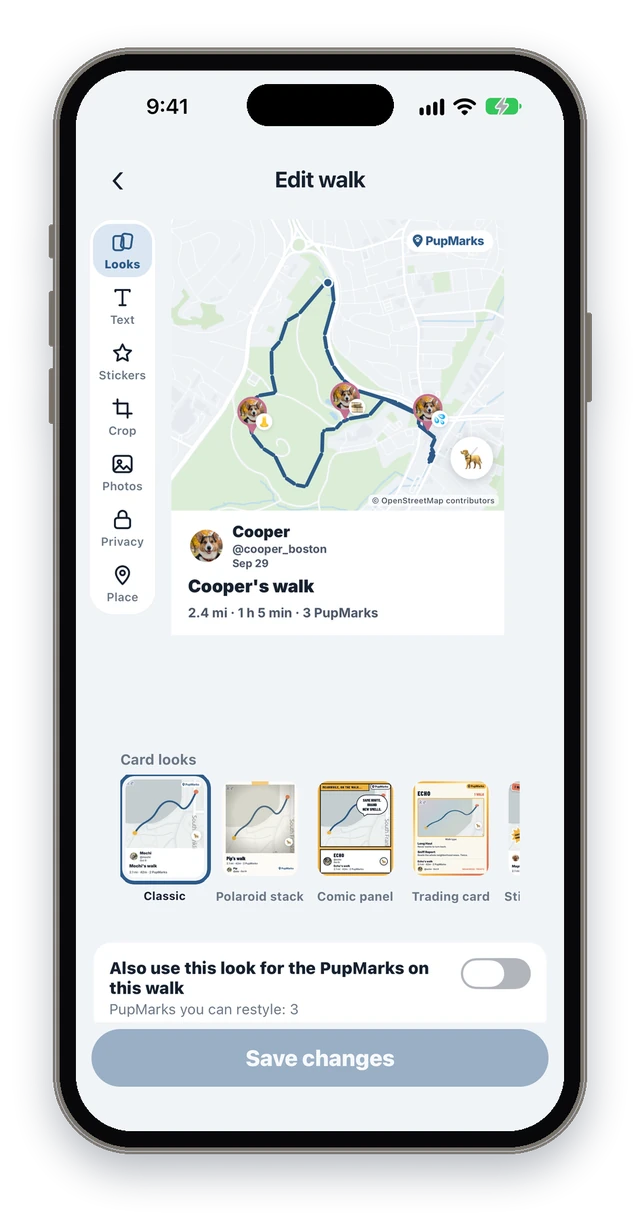
How do I edit a walk card?
Open a saved walk and tap Edit. The Edit walk screen shows your walk card with a row of tools beside it.
- Open the walk from your Pup Diary or your walk history.
- Tap Edit in the top corner.
- Pick a tool: Looks, Text, Stickers, Crop, Photos, Privacy or Place.
- Save your changes.
Which looks can a walk card wear?
A walk card can wear any of the same 22 looks as a PupMark card. Classic is free, and the other 21 come with PupMarks Plus.
Styling a walk card counts toward the same free styled moments as PupMark cards, so free accounts can try looks on 5 moments in total. You can tap Reset to Classic at any time.
Only this walk changes. If you want its PupMarks to match, switch on Also use this look for the PupMarks on this walk. PupMarks warns you first, because each PupMark’s own look and stickers on that walk will be replaced.
How do I change the words on a walk card?
Open Text, tap a line to rewrite it, or tap the line on the card itself.
Some looks have more lines than others. If a look has none to rewrite, the app says so.
How do I add stickers, crop the map and pick a photo?
- Stickers: tap a sticker to add it, then drag, pinch and twist it on the card.
- Crop: drag the map to move it, pinch or double-tap to zoom. This frames the walk map on the card.
- Photos: pick a second photo from the PupMarks saved on this walk, or leave it on Automatic. Looks that show only the map have no photo slot.
What do the Privacy and Place tools do?
They set the choices for the PupMarks you save on this walk. Your walk and its route stay private.
- Privacy sets who can see new PupMarks saved on this walk.
- Place sets whether the PupMark spots on this walk are approximate or exact.
Where do my walk cards show up, and what is Relive it?
Your styled walk card shows in your Pup Diary and on the walk’s page. Under the stats you will see a Relive it button.
Tap Relive it to open Replay, which turns that walk into a video you can save to your phone. The Replay guide shows how.
Curious about the looks? See the card looks on the home page, or learn to customize your Pup Diary.